TC Tips & Tricks
One of the major features in Traincontroller "Gold" edition is the concept of a "train set". A train set is a collection of carriages, wagons and locomotives. The key thing is that you can make changes to it at run time - i.e. not in edit mode. I needed this feature for terminus arrangements: where a locomotive needs to be removed from its carriages and repositioned or replaced by another one.
Consider a terminus station: a locomotive hauls a train into the station, and reaches the buffers at the end of the platform. A common operation is for a new locomotive to be added on to the other end of the train, and it will then take the carriages away leaving the original locomotive behind. It's not possible for this to be automatic. This is how we did it.
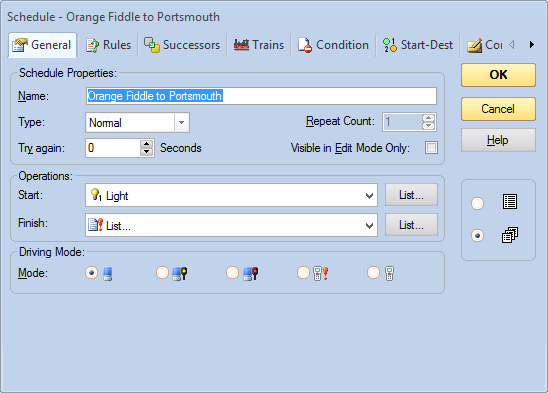
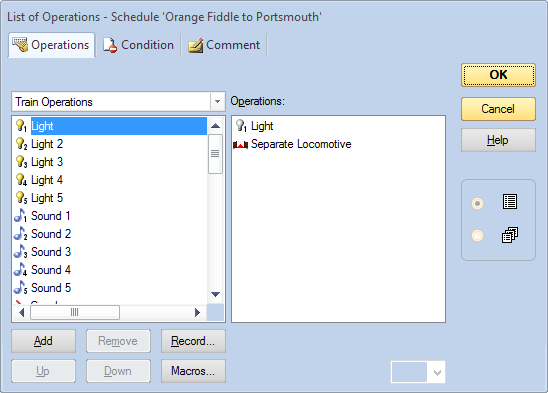
Firstly, the schedule for the "arriving" train needs to be set to separate the engine on completion. There's an option in each schedule for an operation at start and finish of the schedule; simply set "separate locomotive" in the finish operation. In this example, I've got two operations (separate locomotive, and turn off loco lights) so you have to make a list.
Secondly, you need to enable a train to be joined to the other end automatically. It turns out that if Traincontroller can use train tracking to follow the locomotives, then it can do the join automatically when it detects the locomotive backing onto the uncoupled carriages. To enable that:
For each engine you want to be able to do this:
1. select the engine in the "engines and trains" window
2. On the main menu, select train | train set | enable join by train tracking.
For all this to work, train tracking must be functioning. That means you need to have a block that the locomotive can be tracked from, and to, your block containing the carriages; each must have detection. On my railway, platforms have had 2 detectors: one to detect occupancy for most of the block, and one to detect the train arriving at the end (so TC stops it). You now need 3 detectors: an additional one at the entry to the block, that won't be occupied by any resistor wheelsets on carriages, so TC can see the engine arriving in the block.
So now: my old train departs, leaving behind a locomotive. A new train arrives, and it logically separates the loco from the carriages when the schedule stops. Uncoupling magnets automatically uncouple it at the same time. You manually drive a new loco onto the other end of the carriages; Traincontroller tracks it, and joints the loco on; then that new train can depart. All without using edit mode!
Finally - on my railway, multiple units are treated as single engines. When they arrive at the station, they can be separated and you get an error "engine xxx cannot be separated because it is not contained in a consist" indicated in the messages window; it's safe to ignore that error.
(I've updated this from the old version. Now the spoken text is part of the command line, so there's only one script file).
Sometimes a spoken message is useful. My railway has PM42 power managers to isolate power if a track shorts. A spoken message is a useful way to know where to look for a derailed train.
I've added contact indicators that light up blue if the PM42 zones report a short:
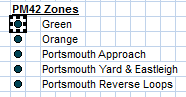
Contact indicators are assigned to PM42 cells as follows: set the "connection" tab to say LocoNet PM4 power manager sub-district, and set the board number (which you will have programmed with a throttle) nd channel number.
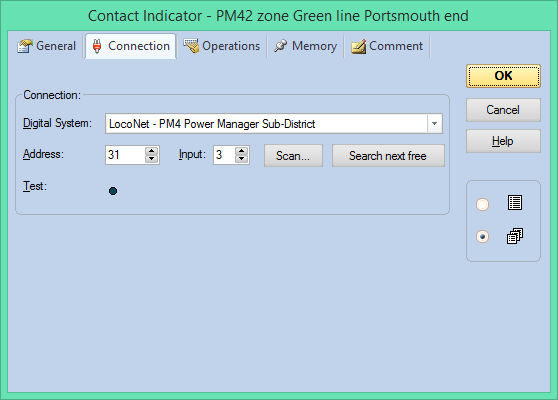
You can then add operations to those contact indicators. Mine displays a message in the Traincontroller message window, and initiates the windows speech engine via a Visual Basic Script (VBS) file:
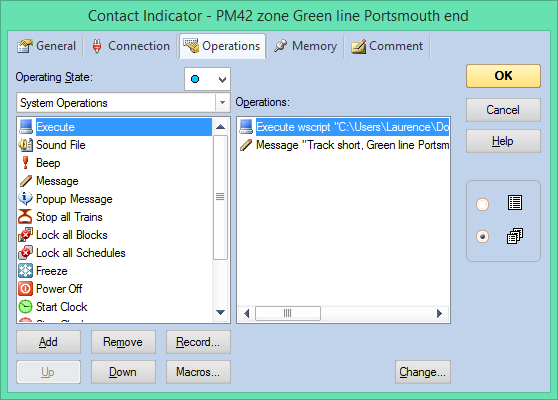
wscript is the program that runs the script. Put the full path to the script in quotes, because it doesn't seem to like paths with spaces in the filenames.
Choose "system operations", cluck "execute" then "add". Click "Change..." and enter the full command line. Mine is:
wscript "C:\Users\Laurence\Documents\south downs railway\rr&co\speech.vbs" "this text is spoken when the track is shorted"
The script file has 4 simple lines of text as follows:
Dim speech
Set objArgs = Wscript.Arguments
Set speech=CreateObject("sapi.spvoice")
speech.Speak objargs(0)
(the last line tells the script to speak the text presented in the command line text)
There's probably more you can do to change the selected voice etc.... but it's a start!
Sometimes a spoken message is useful. My railway has PM42 power managers to isolate power if a track shorts. A spoken message is a useful way to know where to look for a derailed train.
I've added contact indicators that light up blue if the PM42 zones report a short:
Contact indicators are assigned to PM42 cells as follows: set the "connection" tab to say LocoNet PM4 power manager sub-district, and set the board number (which you will have programmed with a throttle) nd channel number.
You can then add operations to those contact indicators. Mine displays a message in the Traincontroller message window, and initiates the windows speech engine via a Visual Basic Scropt (VBS) file:
wscript is the program that runs the script. Put the full path to the script in quotes, because it doesn't seem to like paths with spaces in the filenames.
Choose "system operations", cluck "execute" then "add". Click "Change..." and enter the full command line. Mine is:
wscript "C:\Users\Laurence\Documents\south downs railway\rr&co\speech pm42 green portsmouth.vbs"
The script file has 4 simple lines of text as follows:
Dim speaks, speech
speaks="track Short at Green Line. Portsmouth end"
Set speech=CreateObject("sapi.spvoice")
speech.Speak speaks
There's probably more you can do to change the selected voice etc.... but it's a start!
When a train has crossed over another line on a diamond crossing, the point leading to that crossing needs to be put back to the "straight ahead" position. This is because power to the crossing is fed by the position of the point and it needs to be ready for a train running on the "straight" path through the crossing. The power arrangement looks something like this; we can't simply use an autoreverser because the tracks belong to different occupancy detectors in different PM42 power zones:
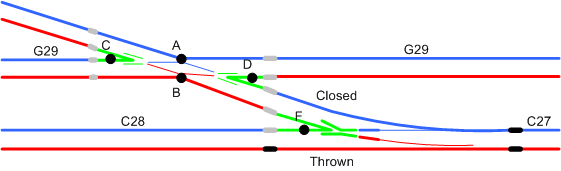
This method makes Traincontroller reset the point when a route through the crossing is unreserved. As a double check, it adds the point into a route running through the "straight" path of the crossing. This way, Traincontroller deliberately activates the point for both "straight" and "crossing" paths through the diamond crossing.
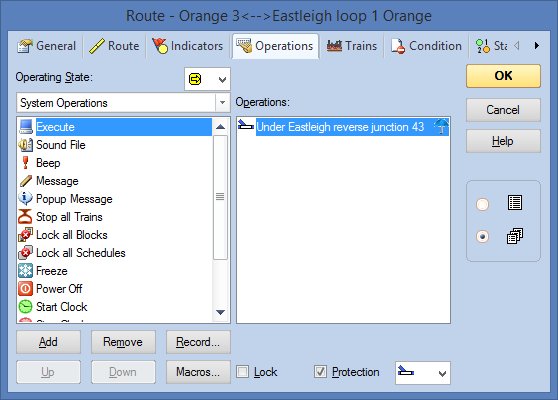
The first thing to do: on all routes that run diagonally through the crossing, add an operation to the route when it is unreserved. Edit the route; select the "operations" tab; then choose the "unreserved" operating state (the darker icon). Add the turnout, and select its position to straight ahead. In my case I have 6 routes (2 possible start points, 3 possible end points): make sure you do them all.
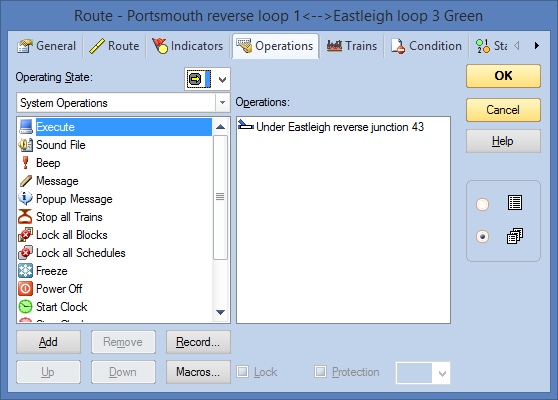
That should mean that when the train reaches the destination block, the route is unreserved and the point goes back to straight.
As a fallback, I've also added the relevant point (turnout) as an operation of the route that goes through the crossing in the "straight ahead" direction. If you tick "protection" that point can't then be operated from a switchboard when the route is reserved.
This method seems to work reliably. The previous method we'd used relied on the speed of traffic, and there was always something that went faster or slower than allowed for.
We want to be able to have Traincontroller drive trains automatically some of the time. But if there are some operators present, we also want to be able to have a human drive the train with Traincontroller operating the main line points. We have an extra switchboard from which train operations are controlled. There are pushbuttons for each start & destination location; these start schedules by using the "start/dest" settings for each schedule. There's also a "human/PC" toggle switch in the middle: this is the key to choosing who drives the train.
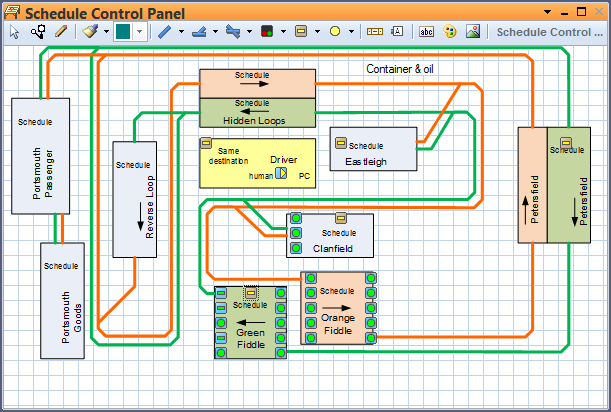
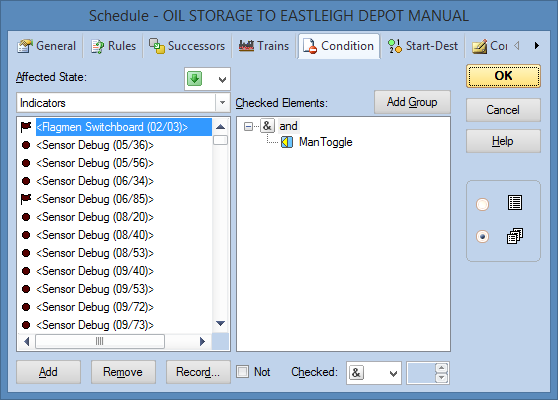
The way we've done this is to have duplicate schedules for almost all schedules: a computer driven one and a manually driven one. In the "computer" one, the driving mode is set to the computer. For manual schedules, it is set to manual driven with PC intervention if required (if you go through a red signal). Tyhat's the fourth option along - a throttle with exclamation mark.
Finally each schedule has a condition: the manual/PC toggle switch being either left or right. That way, only one of the two schedules will start.